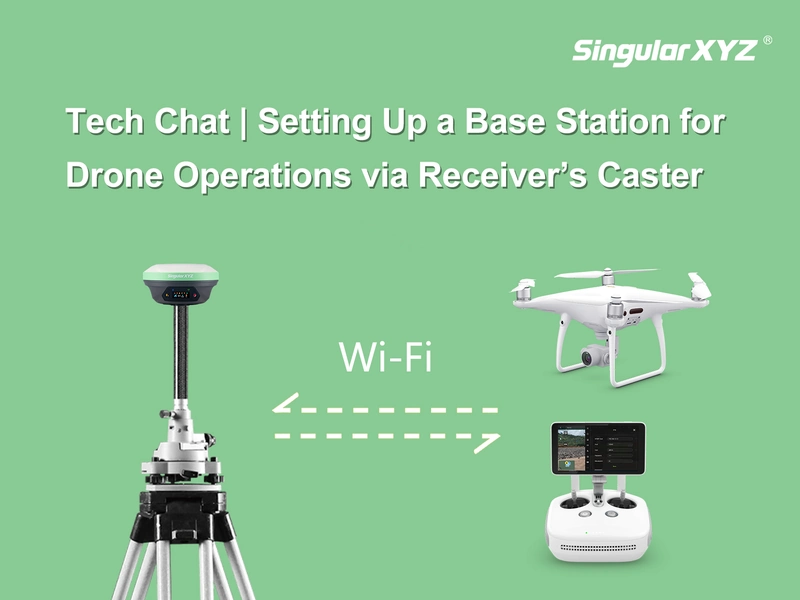
Tech Chat | How to Setup the Y1 GNSS Receiver as a Drone Base
In our previous blogs, we've introduced how to configure X1-series as a drone base via its built-in caster and wifi connection. In this blog, we will introduce how to configure the Y1 GNSS receiver as a drone base.
This guide will walk you through the setup process step by step to ensure a smooth and successful configuration.
Step 1. Connect to the Y1 Wi-Fi
On your computer or mobile device, connect to the Y1 Wi-Fi network.
Wi-Fi name: Y1's SN number
Password: 12345678
Open a browser and enter the following IP address in the address bar:
192.168.1.8

Step 2. Log in to the Web Interface
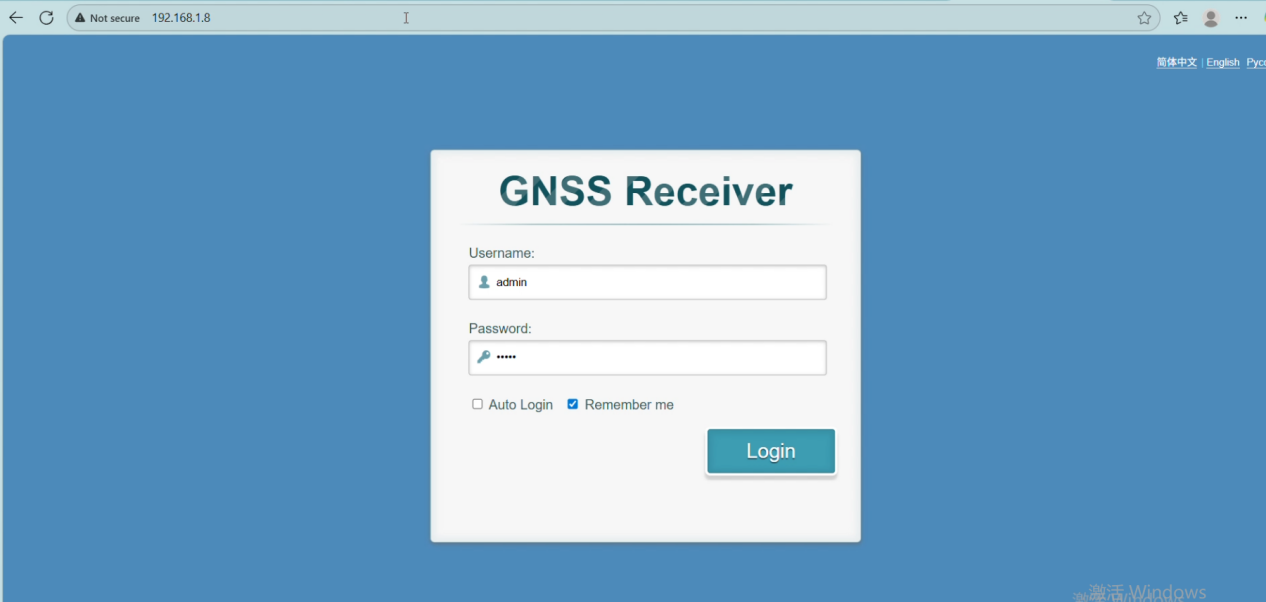
You'll be directed to the Y1 login page.
Username: admin
Password: admin
Click Login to enter the main interface.
Step 3. Set Up WEB NTRIP Parameters
Go to Receiver Management → Data Transfer, select a network protocol channel (TCP/WEBNTRIP) and click Setup.

In the Work Mode field, select WEBNTRIP.
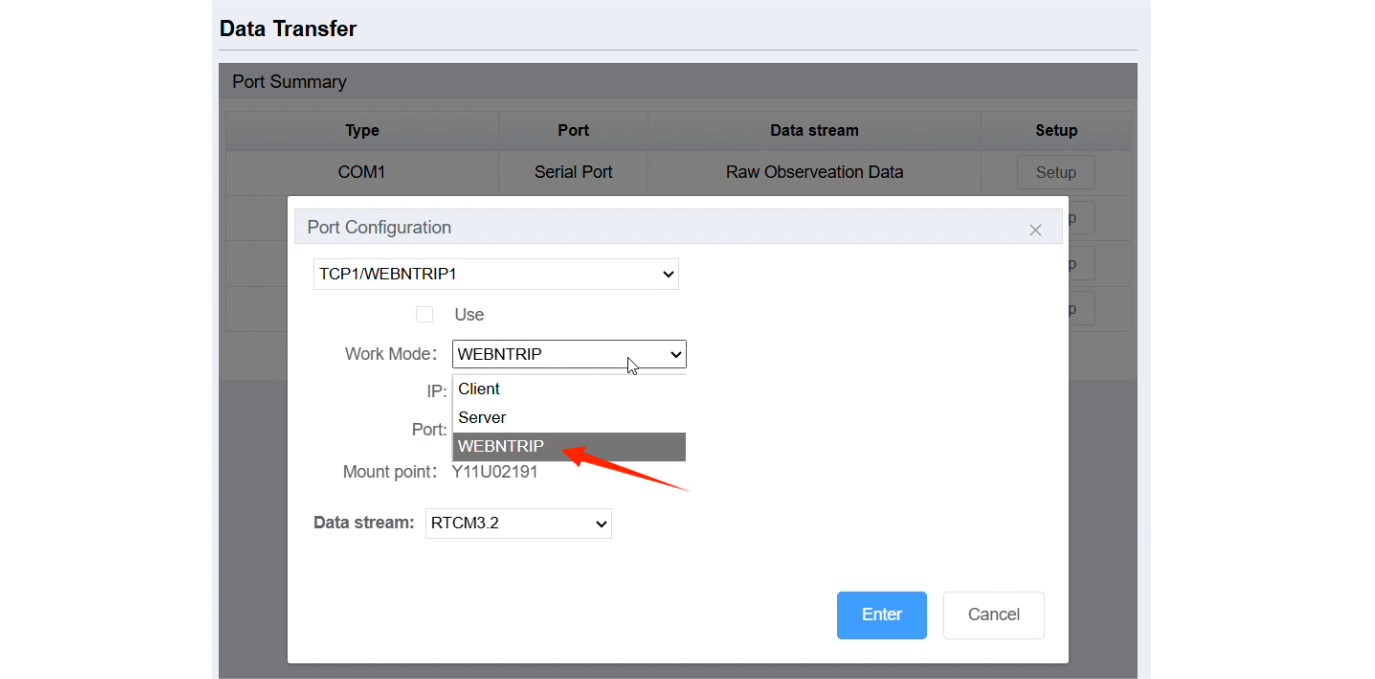
The IP address will be fixed, but you can configure the Port and Data Stream as needed.
Tick Useand click Enterto save your settings.

Step 4. Configure the Base Station
Navigate to Configuration >> Base Station Configuration.
Set the Station ID.
Click Get Position to obtain the current coordinates.
Finally, click Start to activate the base station.

Next Step: Configure Your Drone
When connecting other devices (such as drones) to the Y1 base station:
First, connect them to the Y1 Wi-Fi.
Then, enter the corresponding IP address, port, username, and password.
The mountpoint is the SN number of your Y1 device.
For detailed instructions of these steps, please refer to our previous blog - chapter Step 4:
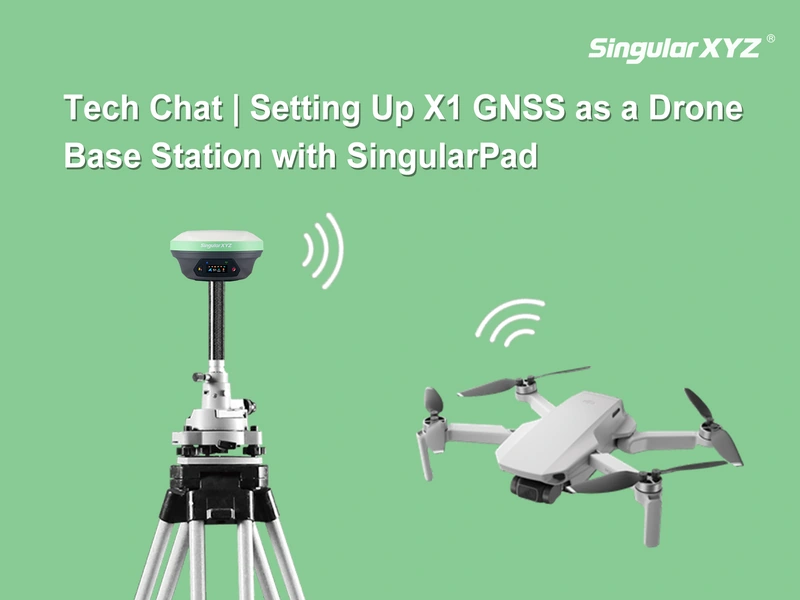
Tech Chat | Setting Up X1 GNSS as a Drone Base Station with SingularPad
With this setup, your drone can receive real-time differential corrections from the Y1 base station for more precise positioning and stable flight performance.
Keywords
Related products
Related articles
Tech Chat | Setting Up X1 GNSS as a Drone Base Station with SingularPad