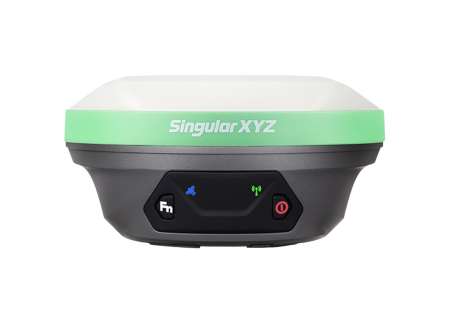
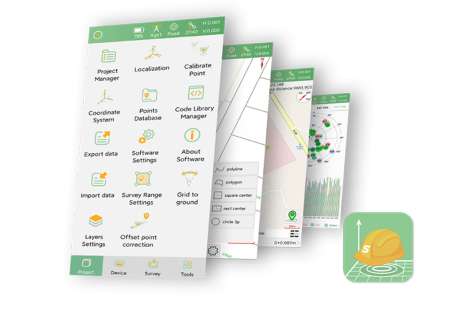
Tech Chat | Setting Up X1 GNSS as a Drone Base Station with SingularPad
In applications such as drone mapping and autonomous inspections, achieving centimeter-level positioning is critical. Accurate RTK positioning ensures reliable mapping results while also preventing accidents such as drones colliding with poles, towers, or power lines—helping protect both equipment and safety.
But what if you don't have access to a CORS account or an external NTRIP caster? In this blog, we'll show you how to configure the X1 GNSS receiver as a base station and stream correction data directly to a DJI drone using SingularPad and the receiver's built-in caster.
Step 1. Connect to the Receiver via SingularPad
Turn on your X1 receiver.
Open SingularPad on your controller or mobile device.
Connect to the receiver's Bluetooth.
Once connected, go to the Main Interface → Base Station.

Step 2. Configure the Base Station
Base Startup Mode: Select Assigned Base Coordinates and input the known point coordinates.
Datalink: Choose Device Internet.
IP & Port: Input the default IP address and port number of the device. For SingularPad, the default port is 6060.
Password: Can be set to any string; here we use admin.
APN (optional)
Base Access Point: Can be set to any string; in this example, we use X1.

Step 3. Configure NTRIP Caster
Click Ntrip Caster → Enable.
Enter your Username and Password (must match the datalink settings above).
Ensure the Mountpoint (Base Access Point) is the same as set in the datalink configuration.
Click Apply, then Start Base Station.
At this point, your X1 receiver is streaming RTK correction data through its built-in caster.

Step 4. Configure the DJI Drone
4.1 Connect to WiFi
On your drone's remote controller, connect to the X1's WiFi network (WiFi name is the SN of your X1).
4.2 Open RTK Settings
Enter the RTK Settings menu.
Set RTK Service Type to Custom Network RTK.

4.3 Input RTK Configuration
Fill in the following fields with the same values as configured in SingularPad:
NTRIP Host
Port
Username
Password
Mountpoint
Click Save. If successful, the status will display: RTK connected, RTK data in use.
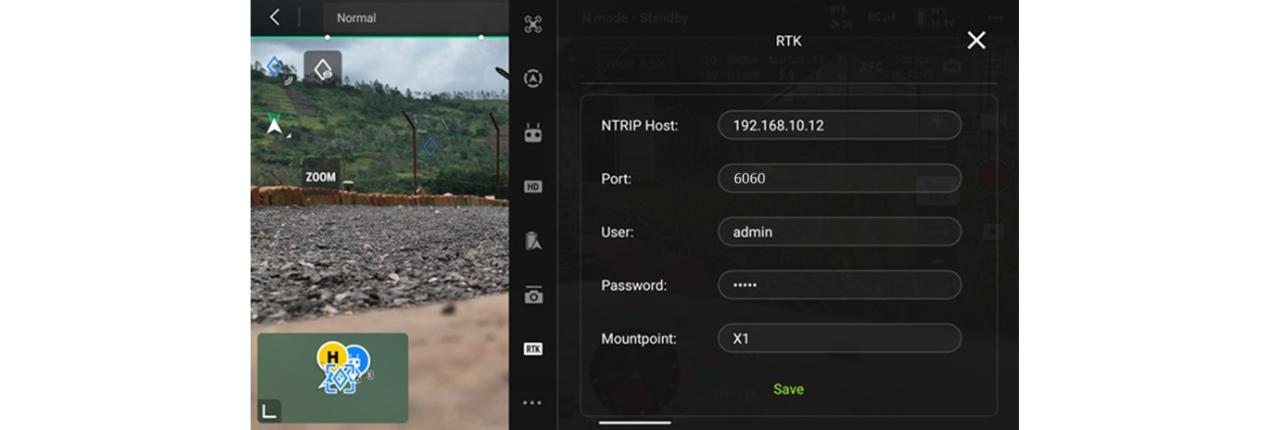

With this setup, your DJI drone is now using high-accuracy RTK correction data from the X1 GNSS receiver, ensuring reliable centimeter-level performance even without CORS access.
This workflow is ideal for surveyors, mappers, and inspection teams who need flexible and independent RTK solutions in the field.
Keywords
Related products