
Tech Chat | How to Set Up DDNS for Remote Management of SV100 CORS Stations?
For CORS providers managing numerous stations, it is inconvenient to go onsite for configuration and upgrades of each station. Therefore, remote control of the CORS station becomes crucial. In our previous blog, we introduced the DDNS function, which allows remote access to the station's web page without needing a static IP.
Read our previous blog for more about DDNS (Dynamic Domain Name System)
Tech Chat | What is DDNS & how does it benefit CORS management?
In today's blog, we will use the SV100 and the NO-IP service as an example to provide a detailed step-by-step tutorial on setting up the DDNS function.
Step 1: Create a Hostname
1. Go to the official NO-IP website(https://www.noip.com/), and log in or register a new account.
2. Create a Hostname.

Enter the hostname you want to set.
Select ddns.net in the Domain field.
Choose DNS Host (A) in the record type.
Enter the IPv4 address of the router to which the SV100 is connected.
Complete the hostname creation.

Step 2: Configure the Ethernet Settings for the SV100
1. Check the IPv4 DNS server address of the router by connecting to the router's WiFi.

2. Set the Ethernet configuration for the SV100. Connect to the SV100's WiFi and access 192.168.10.12 to configure it.
For detailed steps, refer to our previous blog: Tech Chat | How to set SV100 as a base with a router?

3. Connect the SV100 to the router using a LAN cable.
Step 3: Map the Receiver's Internal Port to the Router's External Port
Access the web interface of the router, and then map the receiver's internal port to the router's external port.
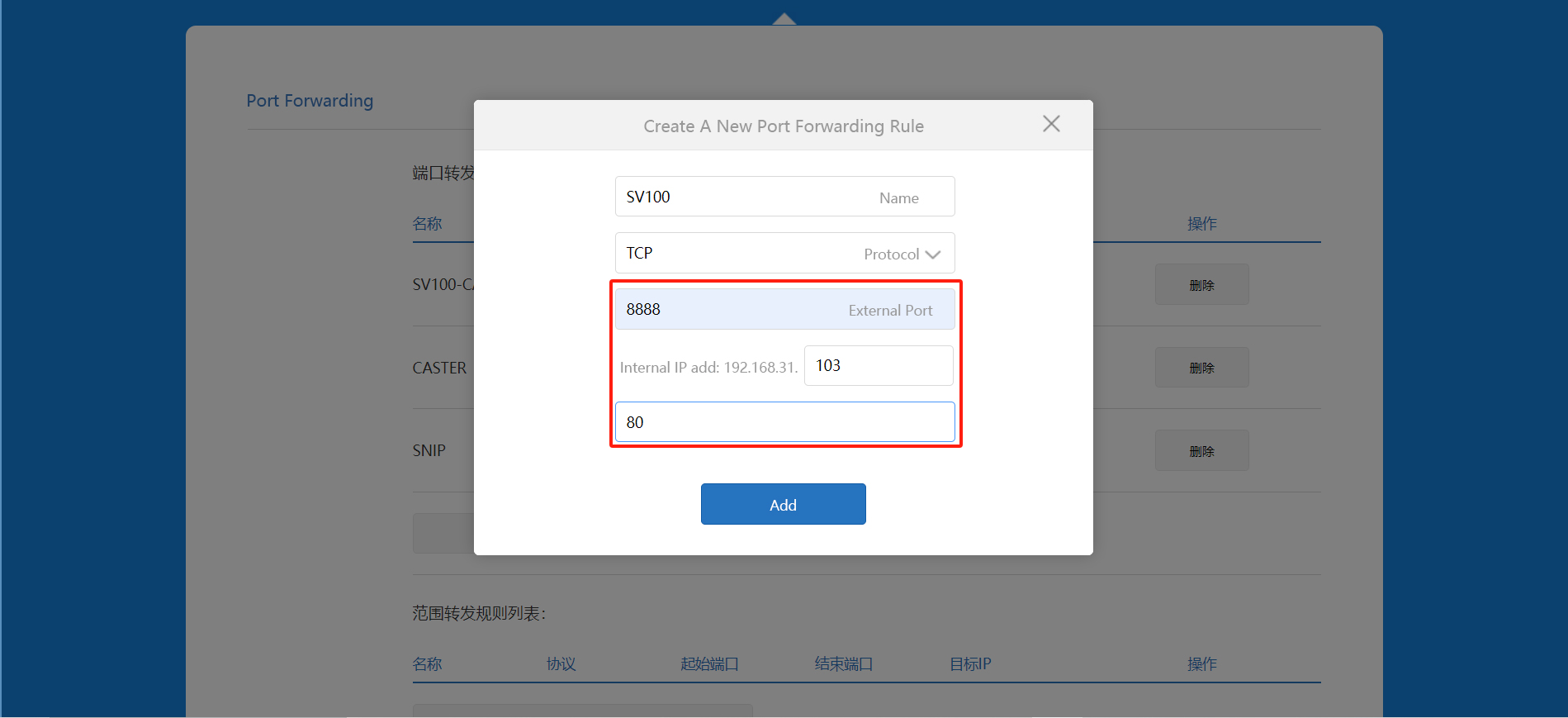
Note: Do not set the router's external port to 80, as this will prevent remote access to the web interface.
Step 4: Set Up the DDNS Function for the SV100
1. Create a DDNS key in NO-IP. The password will be shown only once, so make sure to copy it.


2. Enter the User, Password, and Domain name information in the SV100 web page.

3. Click "Startup" to complete the configuration.

You can now remotely access the SV100 web page via hostname.ddns.net:externalport.
Learn more about our CORS solutions,