Tech Chat | How to Configure the SAgro200 System with SmartBase
When using the SAgro200 system for the first time, proper configuration is required to ensure that the system can communicate correctly with the vehicle, sensors, and correction source.
This blog introduces the basic SAgro200 configuration process and explains how to connect it with a SmartBase to obtain a high-precision RTK fixed solution.
Part 1. Configure the SAgro200 System
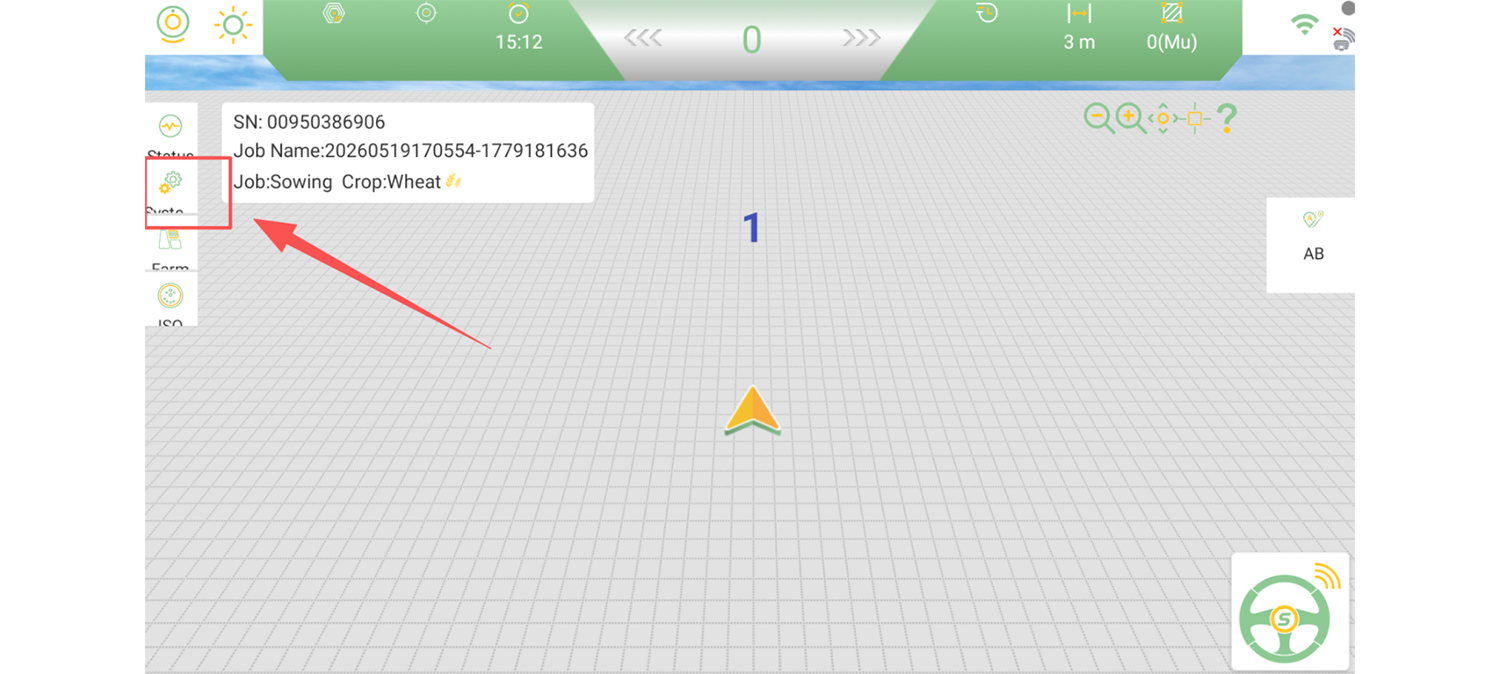
Open the SAgro200 software and enter the Settings interface.
Step 1. Select the Device Type
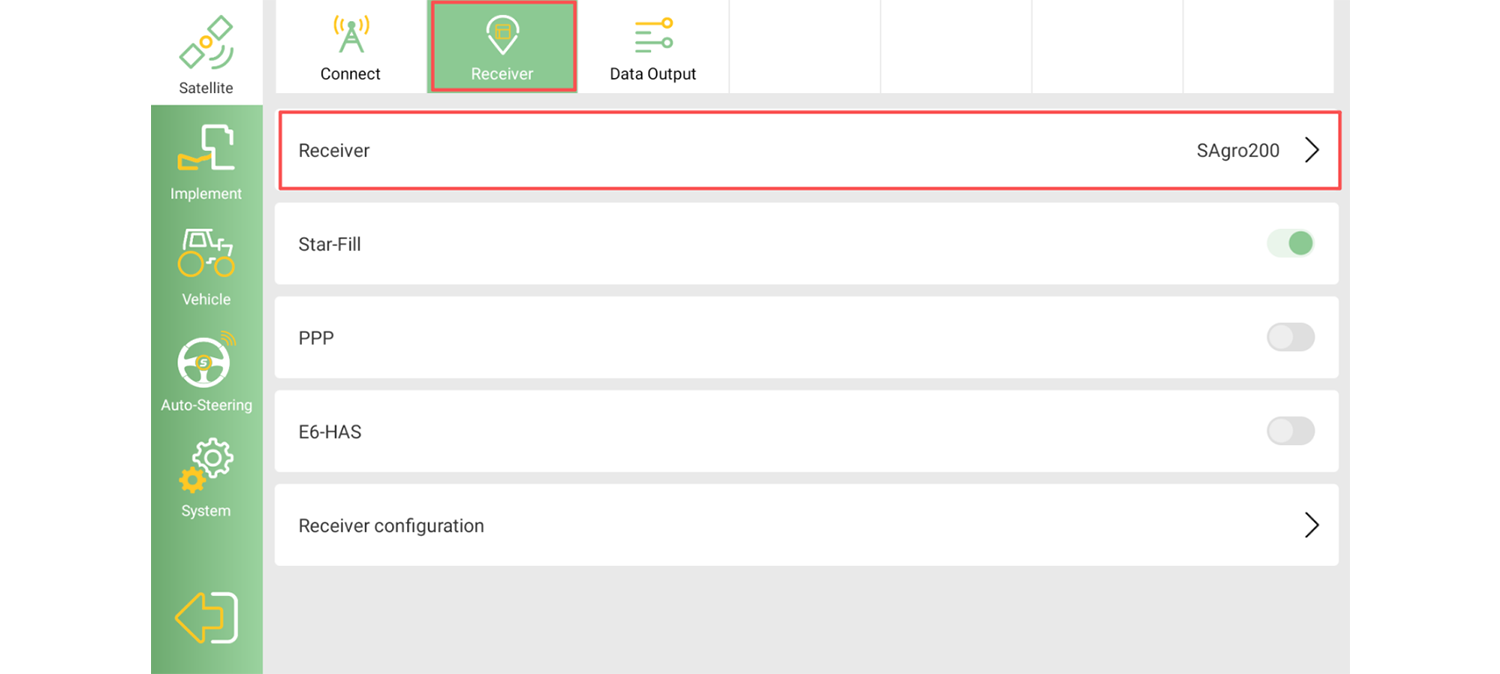
Select Receiver type as SAgro200.
Step 2. Configure Vehicle Parameters
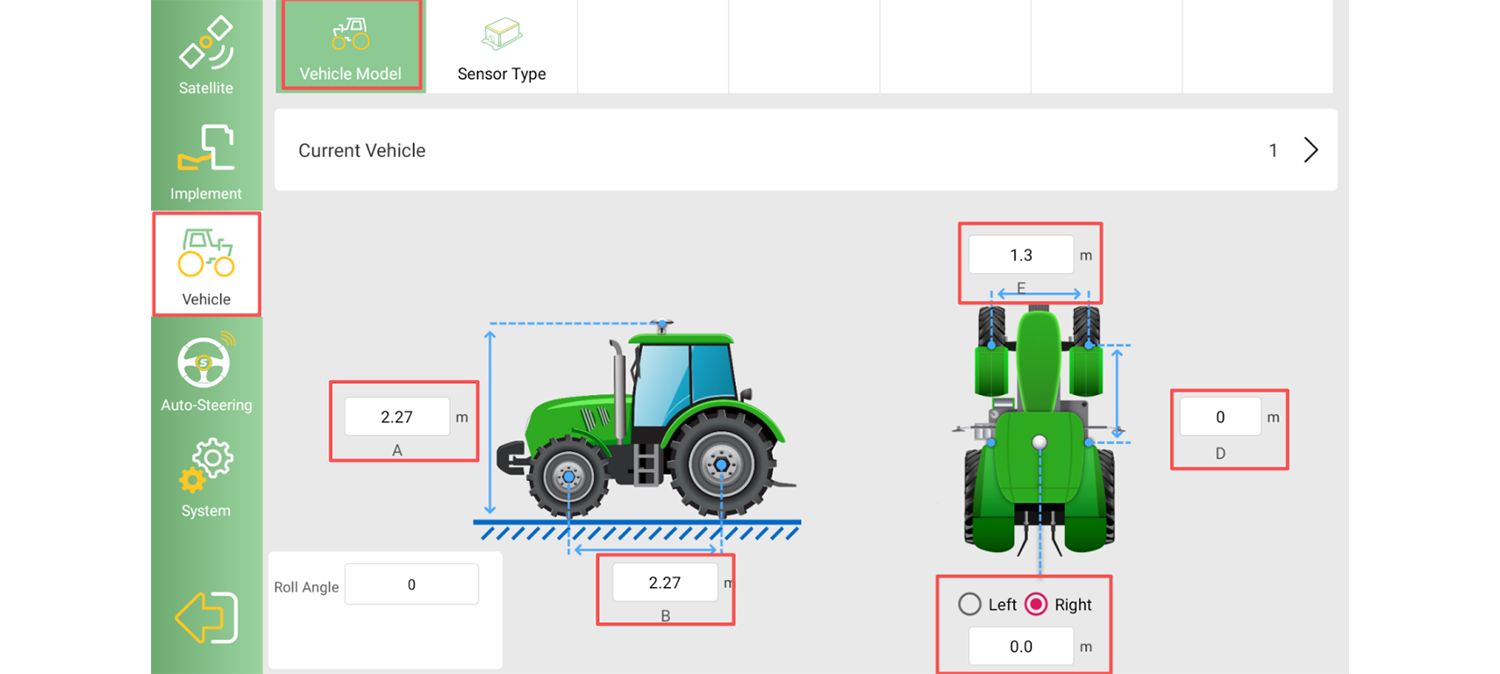
Enter the vehicle parameters in Vehicle >> Vehicle Model according to the actual installation conditions. Accurate vehicle parameters are essential for correct positioning and auto-steering performance.
Step 3. Select the Sensor Type
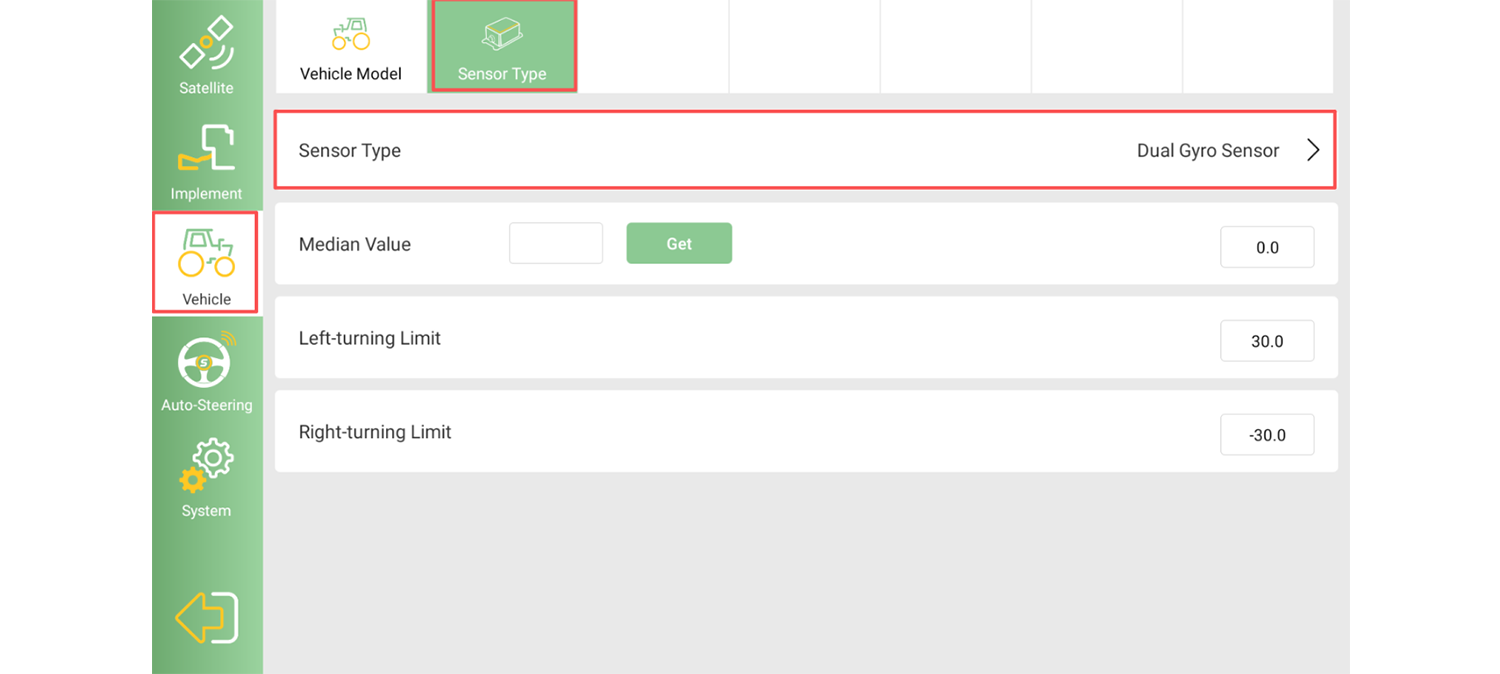
Select the sensor type as Dual-Gyrp Sensor.
Step 4. Set Communication Mode
Set the Auto-steering >> Motor >> communication conversion mode as CAN
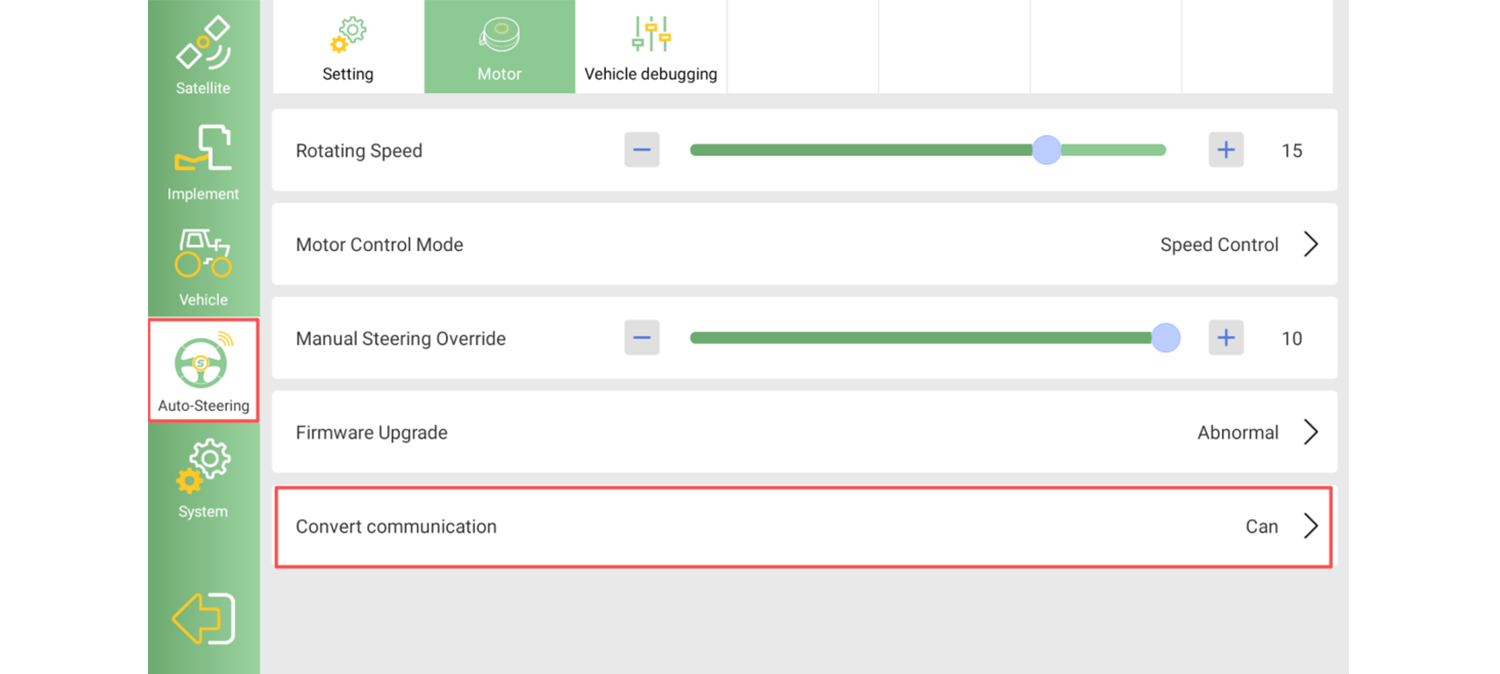
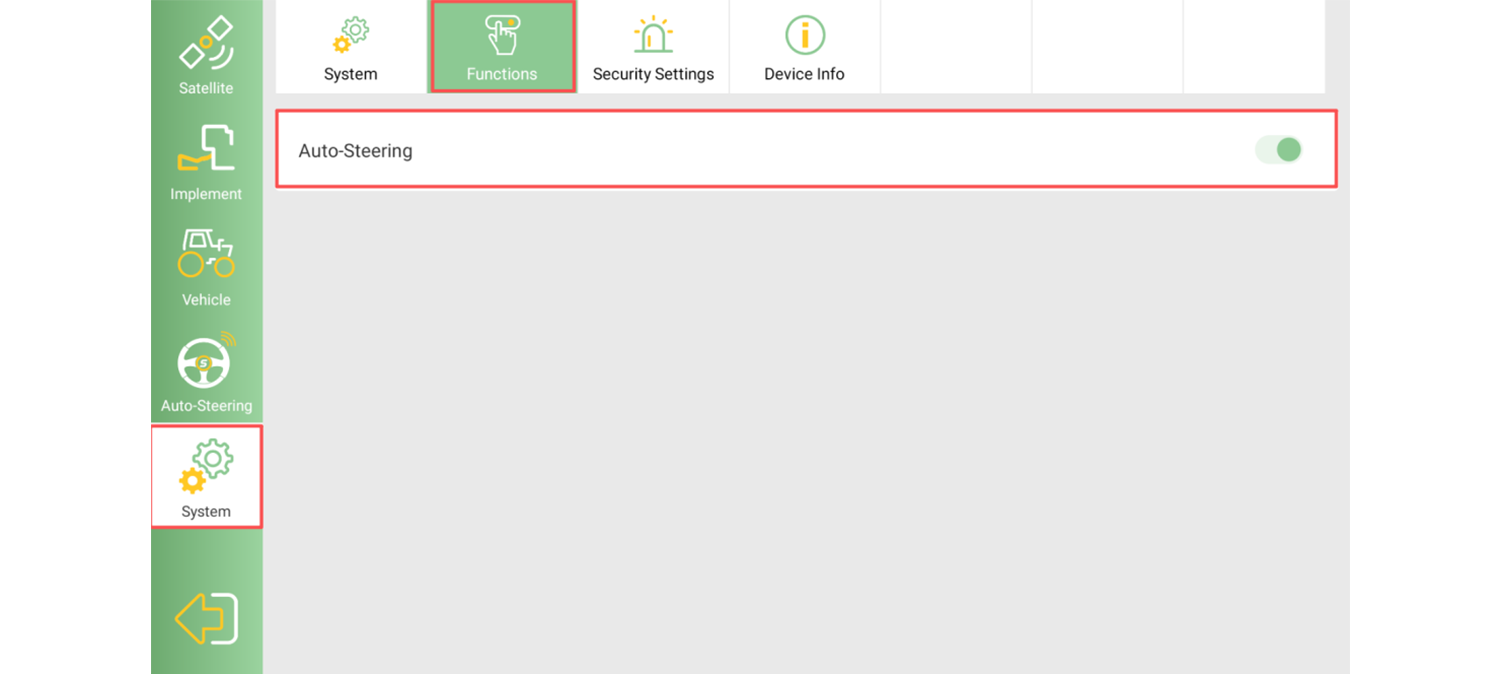
Step 5. Check Function and Registration Status
Enable Auto-Steering function in System >> Functions.
Part 2. Configure SmartBase Connection
After completing the basic SAgro200 configuration, the next step is to configure the SmartBase connection.
For SmartBase setup instructions, please refer to our previous blog:
How to Enable the SmartBase Function on the Device
After configuring the SmartBase radio settings, return to the SAgro200 software and configure the corresponding radio parameters.
Step 6. Add SmartBase Radio Configuration
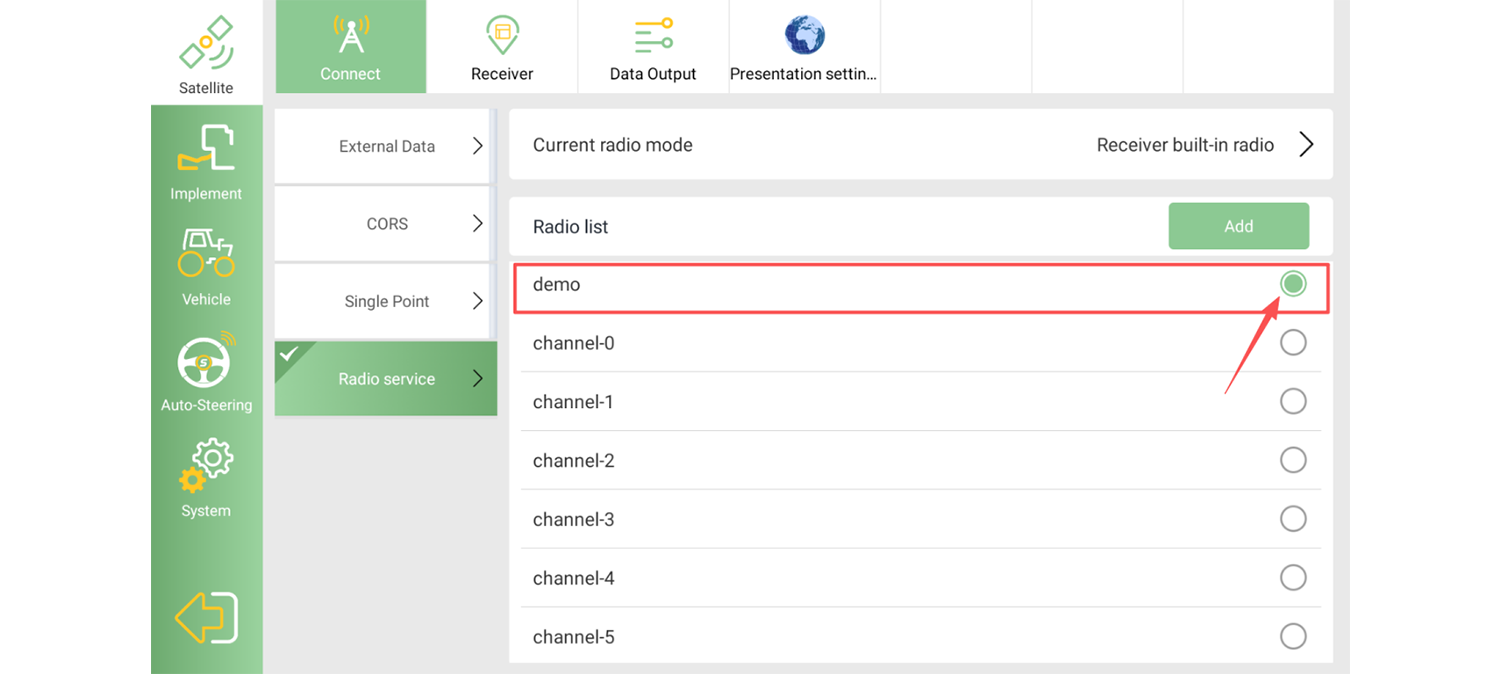
Go to Settings >> Radio Service, and add a new radio configuration.
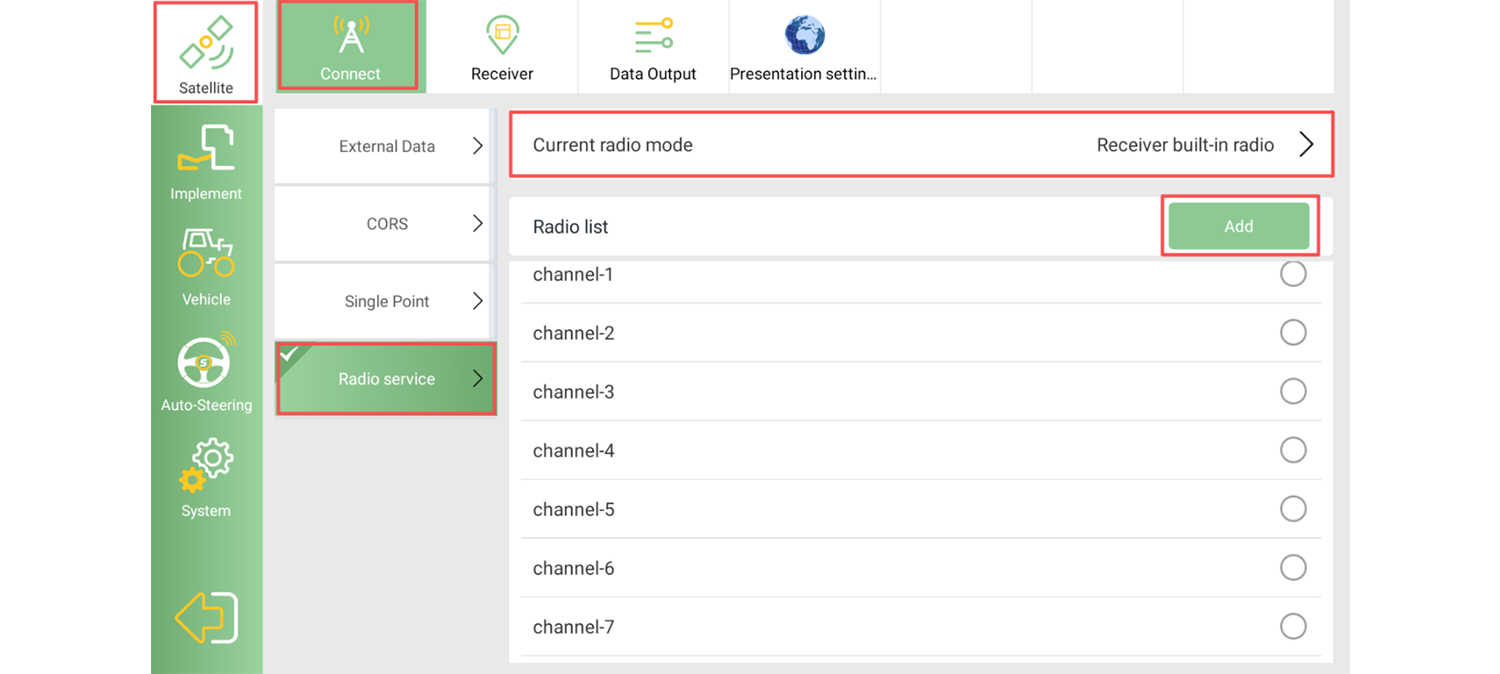
The radio protocol and frequency settings must match the SmartBase configuration exactly.
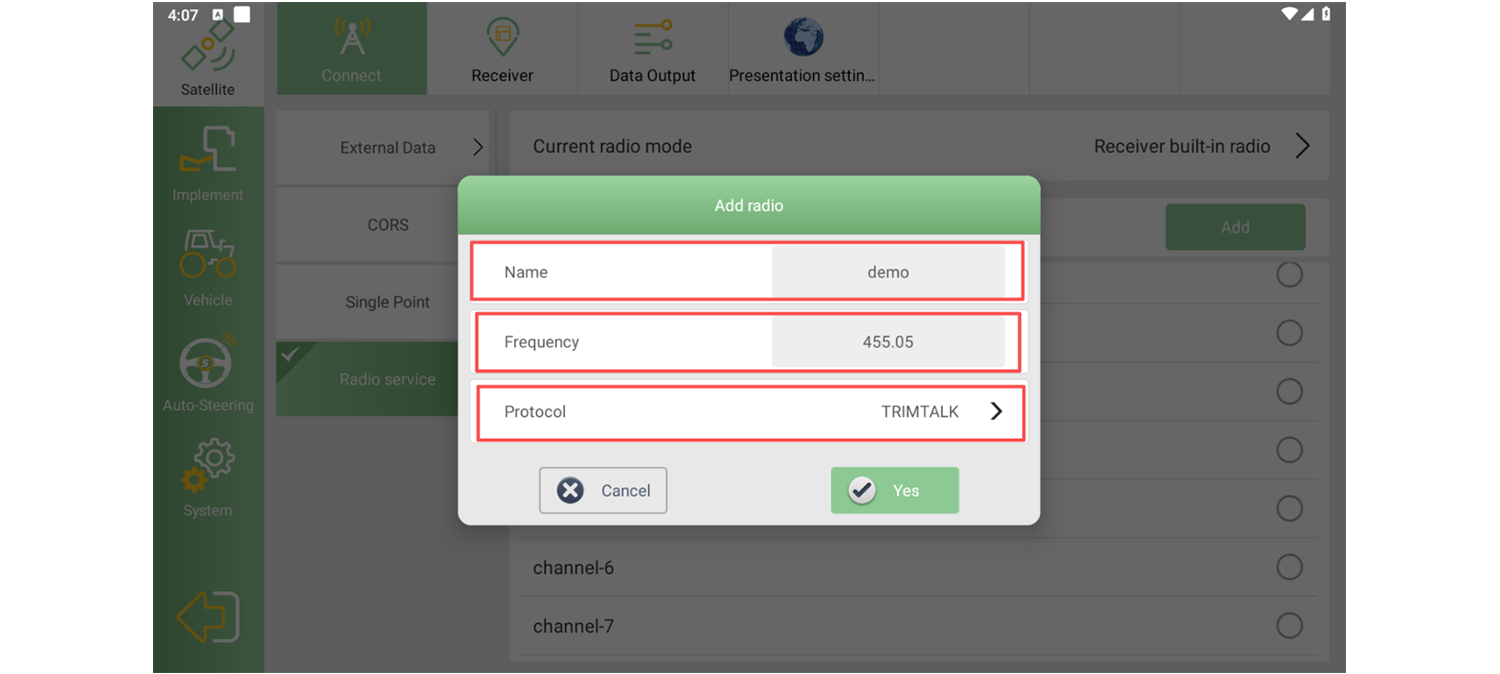
Step 7. Apply the Radio Configuration
After saving the configuration, find the newly added radio profile in the list and click the button on the right to apply it.
Step 8. Obtain RTK Fixed Solution
After completing the radio configuration, the SAgro200 will start receiving correction data from the SmartBase.
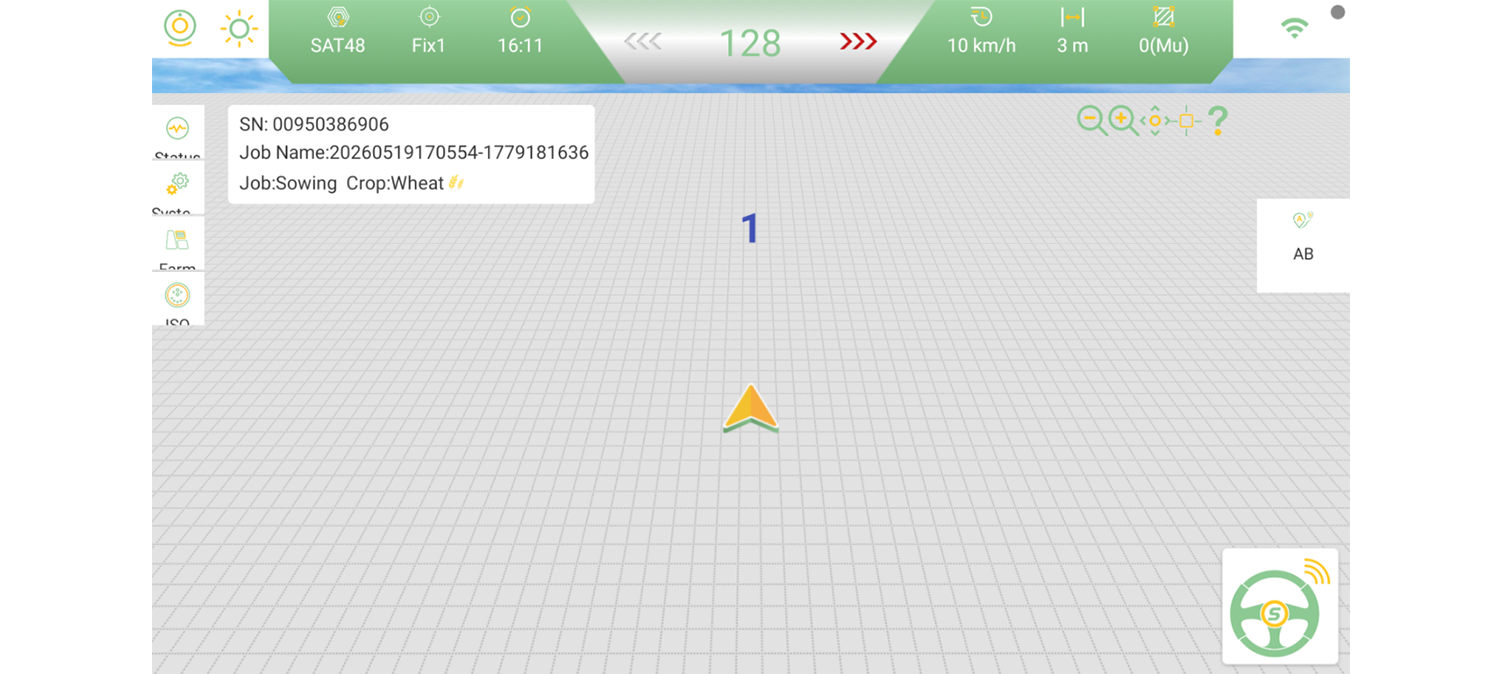
Wait for the system to initialize. Once the RTK status changes to Fixed, the configuration is complete and the system is ready for operation.
Related products
Related articles