
FAQ | SingularXYZ TS1000 Total Station – Part 2 Data Import and Export
In our previous blog, we covered basic settings such as modifying the system language, NEZ/ENZ display, and instrument constant [Click here to read the previous chapter]. This blog will continue by introducing how to use a USB stick to import and export data, which is a crucial aspect of surveying data management.
Our TS1000 total station supports data transfer via USB stick, with formats including GTS (standard Topcon data format) and SSS (point name, N, E, Z, code) format.
Q1: Data Export
1. Switch on the Total Station, and click MENU button to enter the menu interface.

2. Click F3 (MEMORY MGR.).

3. Click F4 (P↓) to go to the next page, and select F3 (THUMB DRIVE).

4. Click F1 (EXPORT FILE).

5. Select the data to be exported by clicking on F1 (MEAS. DATA) or F2 (COORD. DATA).

6. In this screen, select the project file from which you want to export data and then click F4 (ENTER).

7. Select the format of the data to be exported by clicking on F1 (GTS FORMAT) or F2 (SSS FORMAT).
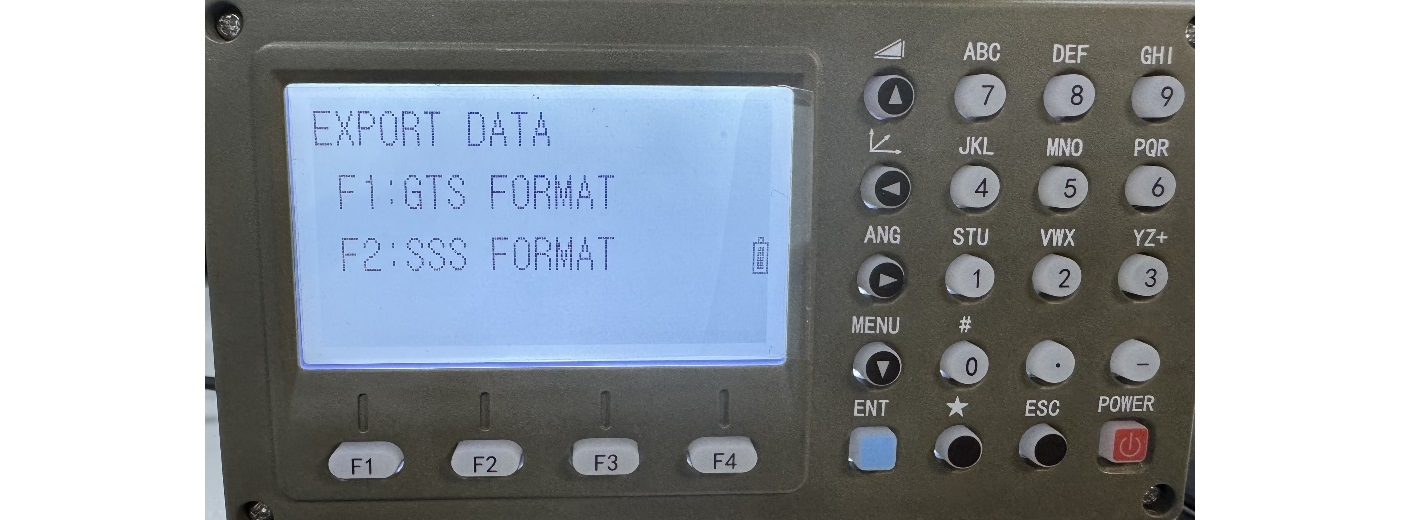
8. Click F3 (YES) to export the data.

9. The exported data can be checked on a USB stick.

Q2: Data Import
1. Follow the data export steps to enter the THUMB DRIVE interface and click F2 (IMPORT FILE).

2. Select the name of the data to be imported from the USB stick by using the up and down arrow keys on the keyboard of the total station, then click F4 (IMPT).

3. Select the project file into which the data is to be imported by clicking on F2 (LIST) and then click on F4 (ENTER).

4. Click F3 (YES) to successfully import the data.

These steps cover the basics of importing and exporting data on the TS1000 total station via USB stick. In our next blog, we will delve into converting other data formats to further enhance your surveying experience with our product.
Learn more about SingularXYZ TS1000 total station
TS1000 Total Station